

Image-based 3D

Make an image to 3d model with texture you can inspect

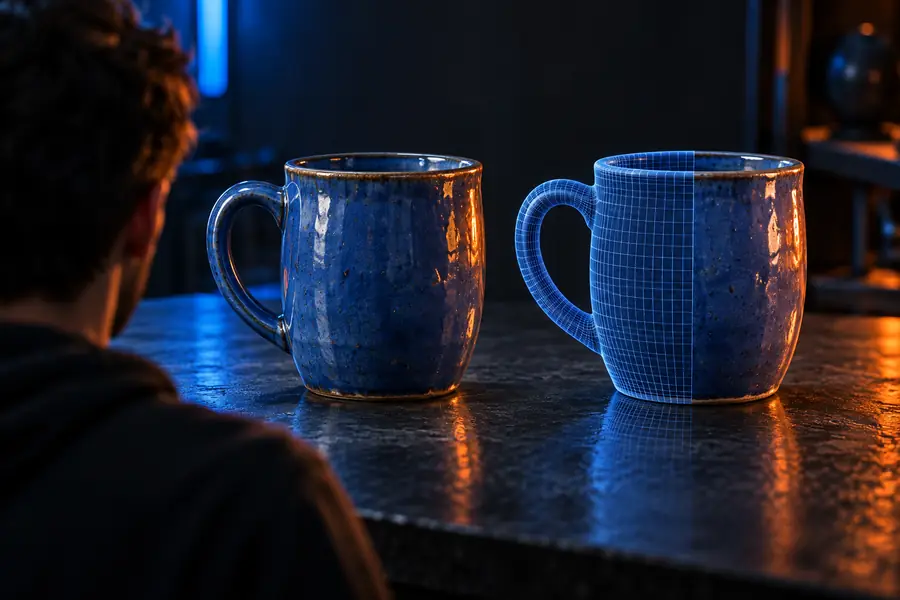
An image to 3d model with texture aims to turn a flat reference into geometry with visible surface detail. The result needs two separate checks: does the shape hold up from other angles, and does the texture stay aligned with it?

Free to start · no signup
Neural4d landing visual for image-based 3D creation

What this variant is

A reference image supplies appearance cues; a 3D result adds depth that a single view cannot directly show.

Reference imageModel preview
Flying robot shown as a flat reference image Flying robot shown as a 3D model preview Reference image Model preview

Drag the divider to compare the pictured robot with its model preview. A preview shows appearance, not whether the underlying mesh or texture files meet your project requirements.

Why the image-to-model workflow changed

Methods for estimating shape and appearance from images have evolved, but an attractive view still cannot prove that every unseen surface is accurate.

  1. NeRF draws attention to novel views

    Neural Radiance Fields showed how a scene could be rendered from viewpoints beyond its input photos. The work focused on view synthesis rather than delivering a conventional editable mesh.

  2. Faster neural reconstruction

    Instant-NGP demonstrated substantially faster training and rendering for several neural graphics tasks, making iteration on reconstructed scenes more practical.

  3. Single-image view generation

    Research such as Zero-1-to-3 explored generating new views from one object image. Those inferred views can help with 3D reconstruction, but unseen details remain estimates.

  4. Fast single-image mesh research

    TripoSR presented a fast approach to reconstructing a 3D object from one image. As with other single-view methods, geometry and surface appearance still need inspection.

The tool block: a spec table for the result

Compare what you can learn from the source picture with what you must check in a generated model. Treat a textured preview as a starting point, not proof of production readiness.

1

Shape

Source image

Shows one projected view.

Textured 3D result

Has depth and can be inspected from other angles.

2

Hidden surfaces

Source image

Not visible in the reference.

Textured 3D result

Inferred; check the back, underside and gaps.

3

Surface detail

Source image

Contained in the pixels.

Textured 3D result

May be represented by texture, geometry or both.

4

Texture alignment

Source image

Not applicable to a flat picture.

Textured 3D result

Check seams, stretching and misplaced details.

5

Silhouette

Source image

Known only from the pictured angle.

Textured 3D result

Compare across front, side and three-quarter views.

6

Project suitability

Source image

Useful as visual reference.

Textured 3D result

Depends on the delivered mesh, materials and your target application.

Where a textured result can help

The same reference can serve different goals. Decide whether you need a convincing concept view or a model you can examine and revise.

Concept artist

Turn a character or prop sketch into a form that can be viewed from several angles.

Check the silhouette before developing the design further. For another kind of dimensional output, image to 4d model explains what that phrase may mean and where it differs from a static mesh.

image to 4d model

3D artist

Use a product photo as a starting reference for a model, rather than as a final asset specification.

Inspect topology, missing surfaces and material placement before editing. Neural4d for 3d models covers practical ways to assess a model-oriented workflow.

neural4d for 3d models

Product designer

Explore the look of an object from a supplied image before committing to detailed modeling.

Use the preview to discuss proportions and finish, then verify anything needed for fabrication. Neural4d mockup focuses on presentation-oriented results.

neural4d mockup

Check the result in three passes

  1. 1

    Choose a clear reference

    Start with one object, a readable outline and visible surface detail. A single photo cannot establish the true shape of parts it does not show.

  2. 2

    Review shape from new angles

    Rotate the model if the destination tool provides that view. Look for collapsed depth, distorted proportions and invented details on hidden surfaces.

  3. 3

    Inspect the surface

    Look closely at patterns, edges and seams. Before using the result elsewhere, confirm the actual output includes the geometry and texture data your workflow requires.

Try a reference-led 3D workflow

Start with a clear image and a specific goal

Describe the object and the details that matter most, then inspect shape and surface appearance separately. Available inputs and delivered files depend on the destination tool.

Explore 3D creation
  • Name the visible material and important features
  • Check unseen geometry before reuse
  • Verify texture and file requirements in the destination tool

Variant FAQ

A tool can infer a 3D shape and surface appearance from one view, but the image does not contain evidence of the object's hidden sides. Inspect those areas rather than assuming they match the real object.

No. A rendered preview shows what the object looks like on screen; it does not establish which mesh, material or texture files are available. Check the destination tool's actual output options before planning a downstream workflow.

Choose an image with a distinct object outline, visible material detail and limited obstruction. Strong reflections, heavy blur or large hidden areas can make shape and surface details harder to infer.

Rotate the model and inspect edges, repeated patterns and transitions between surfaces. Watch for stretched markings, abrupt seams or details that move away from the geometry they should describe.

Start creating
Start creating